PC-Compatible Devices
User Guide
FAQ
Govee Desktop is Govee PC App, which enables you to control Govee smart devices from your computer.
Core Features: Centralized device management, screen-synced lighting (Movie-Watching/Gaming DreamView), music-responsive lighting (Music DreamView), and Razer Chroma Connect.
Device Management and Connection
Why is it necessary to connect the device to Wi-Fi?
Govee Desktop controls devices via both Wi-Fi and LAN communication methods. Therefore, before use, please ensure that your Govee smart lighting device has successfully connected to Wi-Fi.
Why are no Govee smart devices displayed after I log into Govee Desktop?
Check whether the devices have been added to Govee Home App and whether you are using the same account.
Upgrade the device firmware to the latest version.
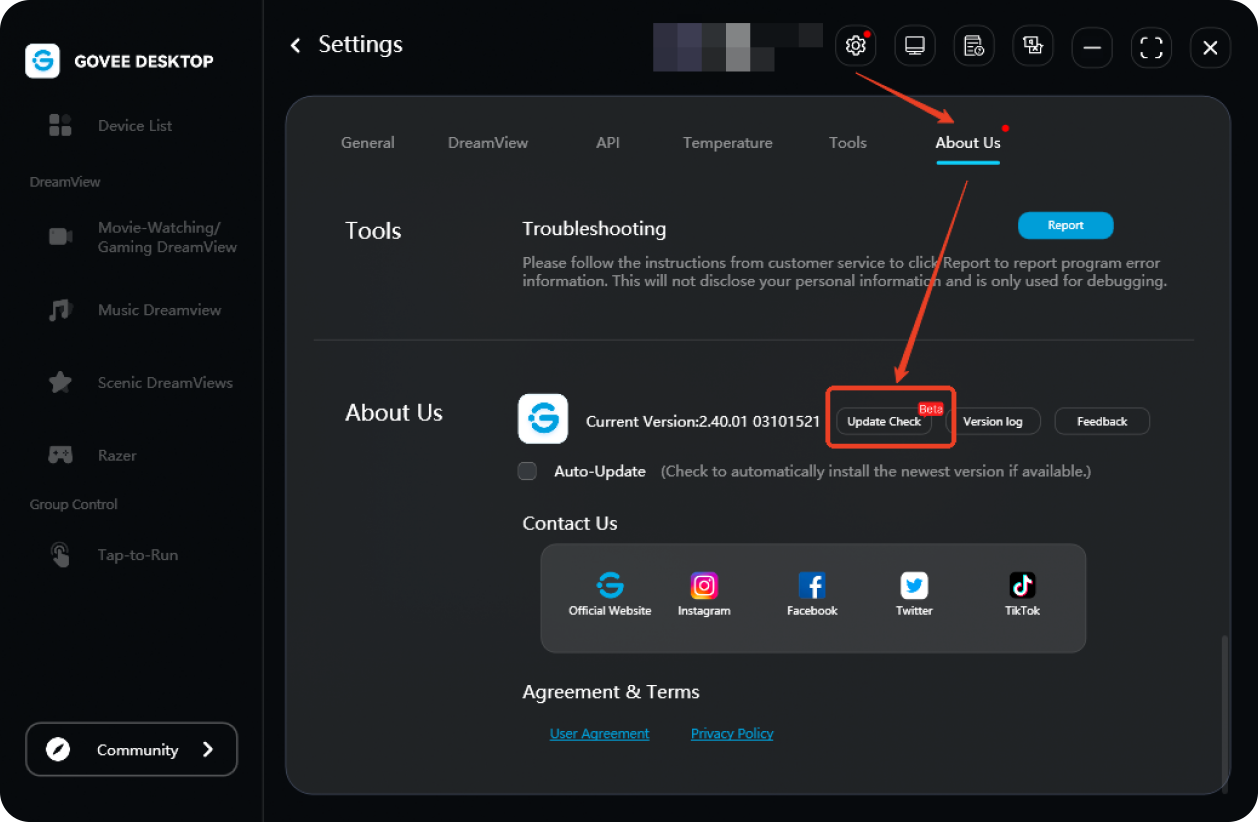
Upgrade Govee Desktop to the latest version (refer to the process shown in the following picture).
Why is the Internet communication of this device unavailable ?
?
?Check whether this device is plugged in and connected to Wi-Fi.
Turn off the Bluetooth on the phone and control the device via Wi-Fi using Govee Home App. Check if it works properly. If the device can be controlled normally on the app, but fails on the desktop, please note the model and device version in the "Settings" > "About Us" > "User Feedback" section of Govee Desktop and send it to us.
Why is the LAN feature unavailable ?
?
?Ensure the device is correctly configured on your mobile device.
Verify that the Wi-Fi network (2.4GHz) connected to this device is on the same local area network as the Wi-Fi network (2.4/5GHz) connected to your computer.
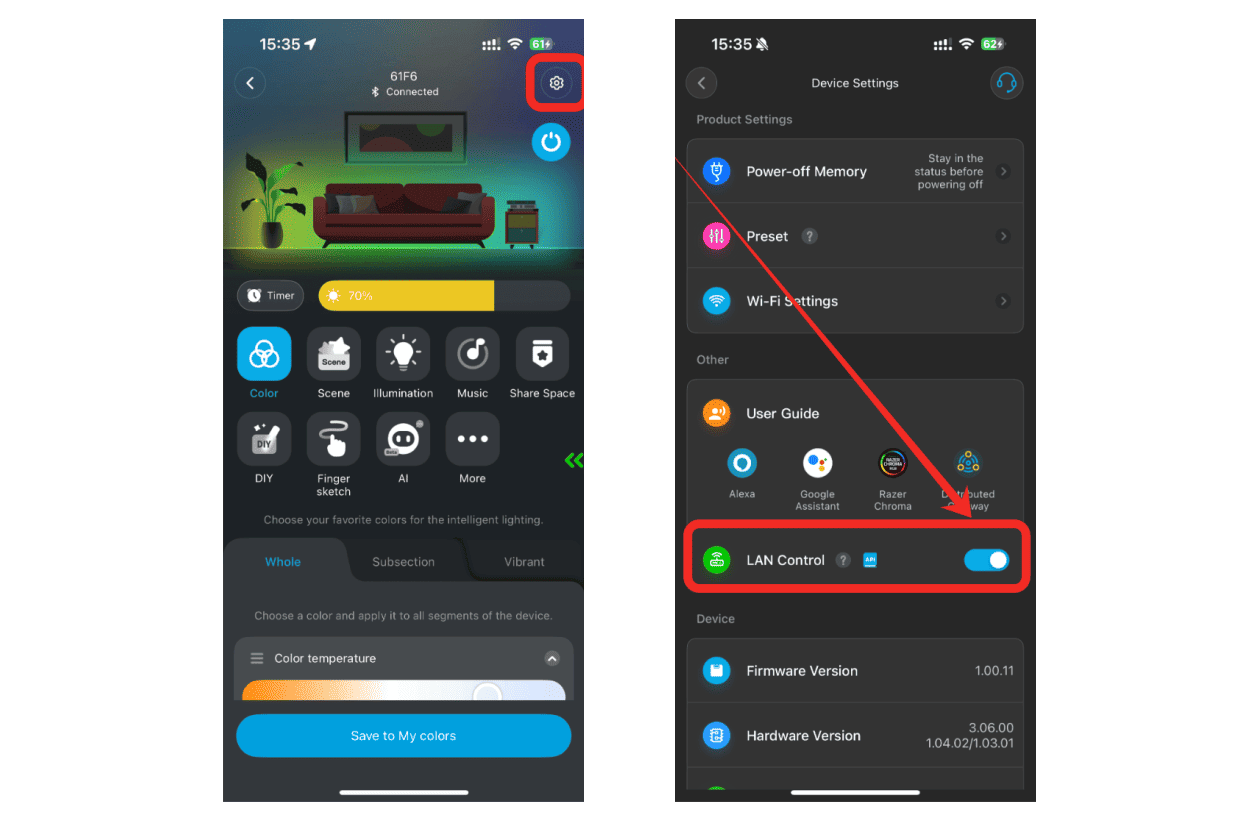
Go to Govee Home App's "Device Settings" page and check if the device's "LAN Control" is enabled. If the "LAN Control" toggle is not displayed, reconnect the device to Wi-Fi or rebind this device.
Ensure the router settings are configured correctly.
If your home network consists of multiple routers, ensure the device and computer are connected to the same one. Disable other extended networks (e.g., repeaters, bridges, etc.), and ensure the device and computer share the same IP subnet.
If multiple Wi-Fi networks share the same name, ensure the device and computer are connected to the same one.
Check the computer's system environment.
If your computer has multiple wired and wireless network adapters (including VMware Virtual Ethernet Adapter for VMnet) connected to different networks, this may cause unstable LAN connections for the device. Disable virtual adapters and remove external network adapters.
If security antivirus software is installed on the computer, it may restrict Govee Desktop communication features. Try disabling the security antivirus software.
If the computer has a hotspot enabled, it may cause unstable LAN connections for the device. Turn off the hotspot and restart the computer.
Screen Light Sync
Why can't I select a device to add to the Movie-Watching/Gaming DreamView to synchronize lights and screen colors?
Make sure the device supports Movie-Watching/Gaming DreamView. Check "Devices Supporting PC" – List of devices supporting Movie-Watching/Gaming DreamView, and verify if your device name appears on the list.
Make sure the LAN connection status of your device is  . If not connected, refer to Device Connection Status and Control Feature Instructions to set accordingly.
. If not connected, refer to Device Connection Status and Control Feature Instructions to set accordingly.After successfully creating and activating a DreamView, why do the device lights fail to synchronize with the screen display, or appear "off"?
Make sure the device's LAN connection status is available.
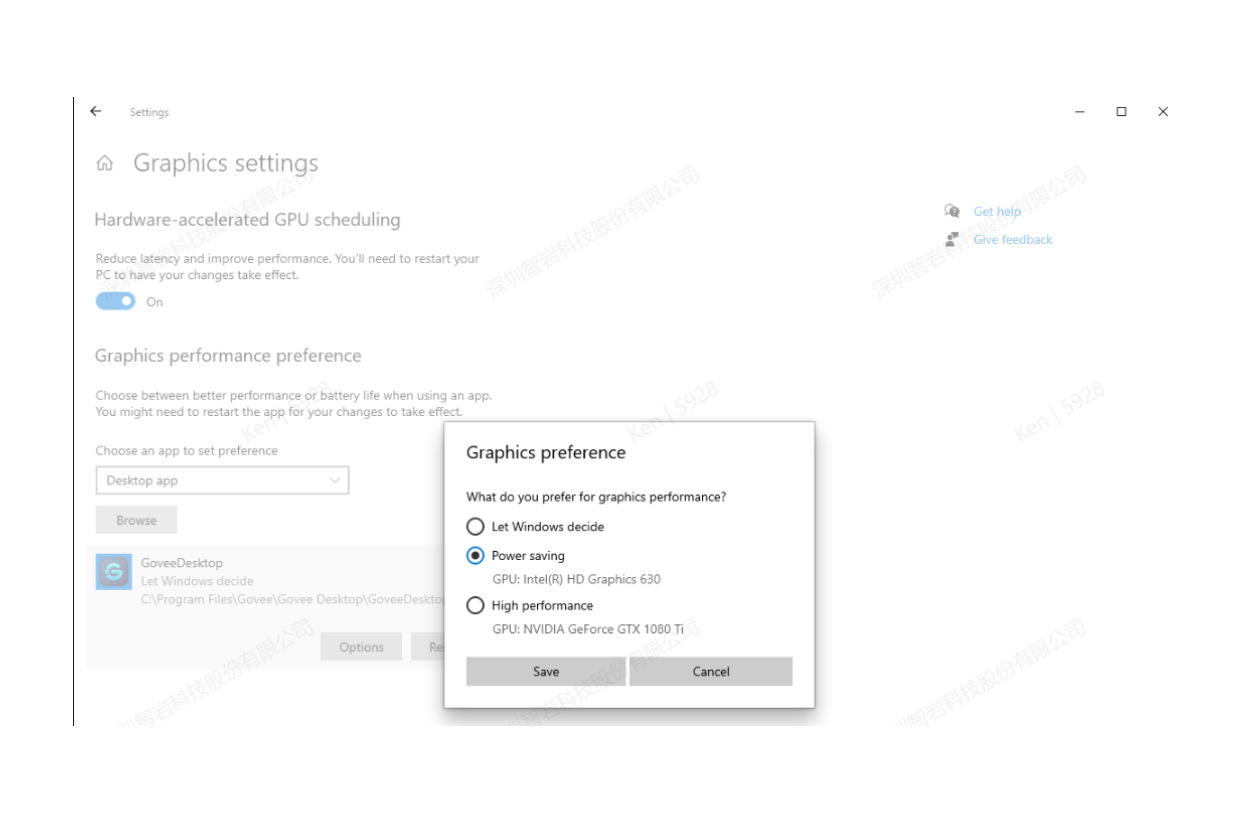
Open your computer's "System" – "Display" – "Graphics" interface, manually add Govee Desktop to the list, and check the option containing "Graphics". Then restart your computer before running Govee Desktop again.
Certain online videos may display no lighting effects due to copyright protection preventing access to their content.
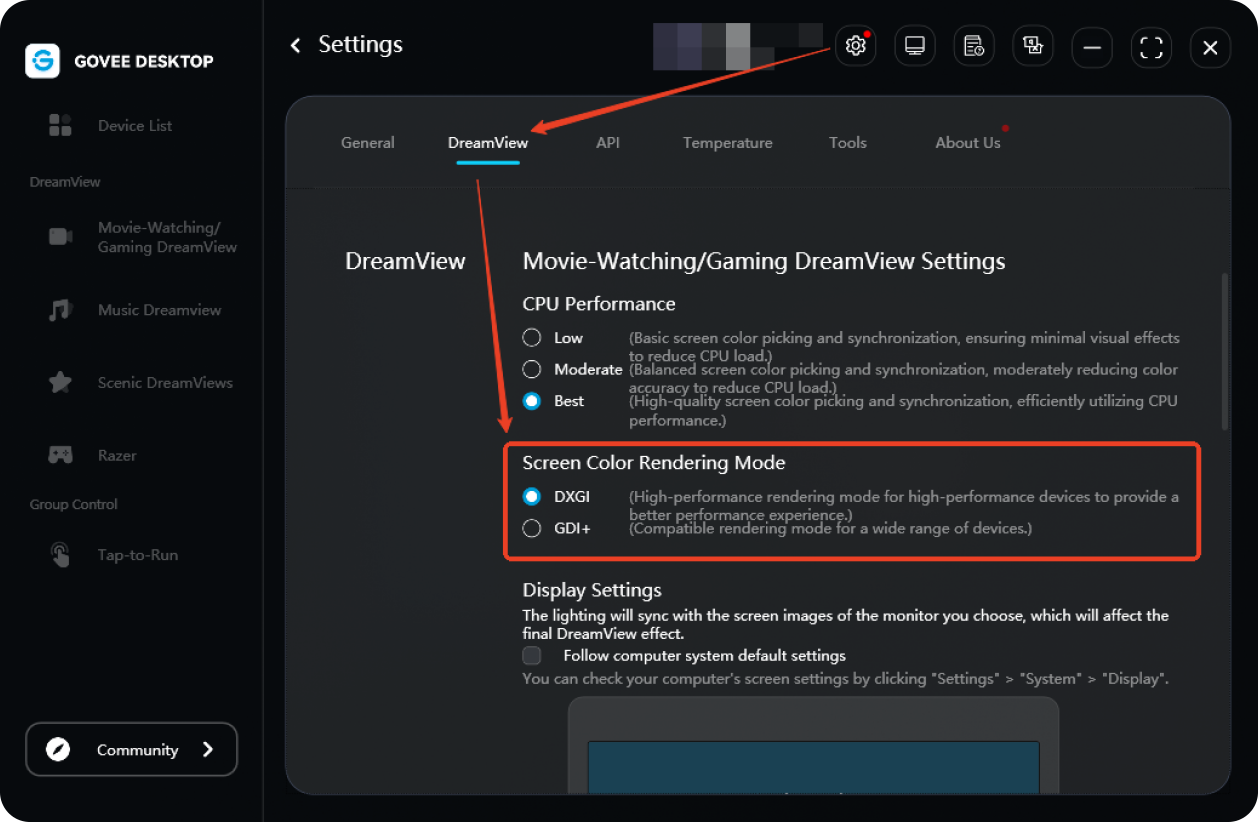
If the above suggestions still fail to resolve screen synchronization issues, navigate to "Settings > Screen Color Rendering Mode," select the "GDI+" option, then restart the DreamView to observe whether the lighting successfully synchronizes with the screen display.
Music Light Sync
Why can't I select a device to add to the Music DreamView to synchronize lights and rhythm?
Make sure the device supports Music DreamView. Check "Devices Supporting PC" – List of devices supporting Music DreamView, and verify if your device name appears on the list.
Make sure the LAN connection status of your device is . If not connected, refer to Device Connection Status and Control Feature Instructions to set accordingly.
. If not connected, refer to Device Connection Status and Control Feature Instructions to set accordingly.Why do light changes sometimes lag behind the music rhythm?
Light change delays are primarily related to network connection stability. When Wi-Fi or LAN signals are weak or unstable, data command transmission slows down, causing lights to react behind the music rhythm.
Place your computer and Govee devices on the same stable Wi-Fi network.
Position devices as close to the router as possible, or avoid placing them behind too many walls.
Razer Device Sync
Lights not syncing with Razer software?
If a prompt provides instructions, follow them.
If no prompt appears, try reinstalling Razer Synapse and restarting Govee Desktop. This usually restores normal functionality.
Refer to the Razer Chroma Connect Feature Explanation in the user manual to verify installation steps.
Window Display Anomalies
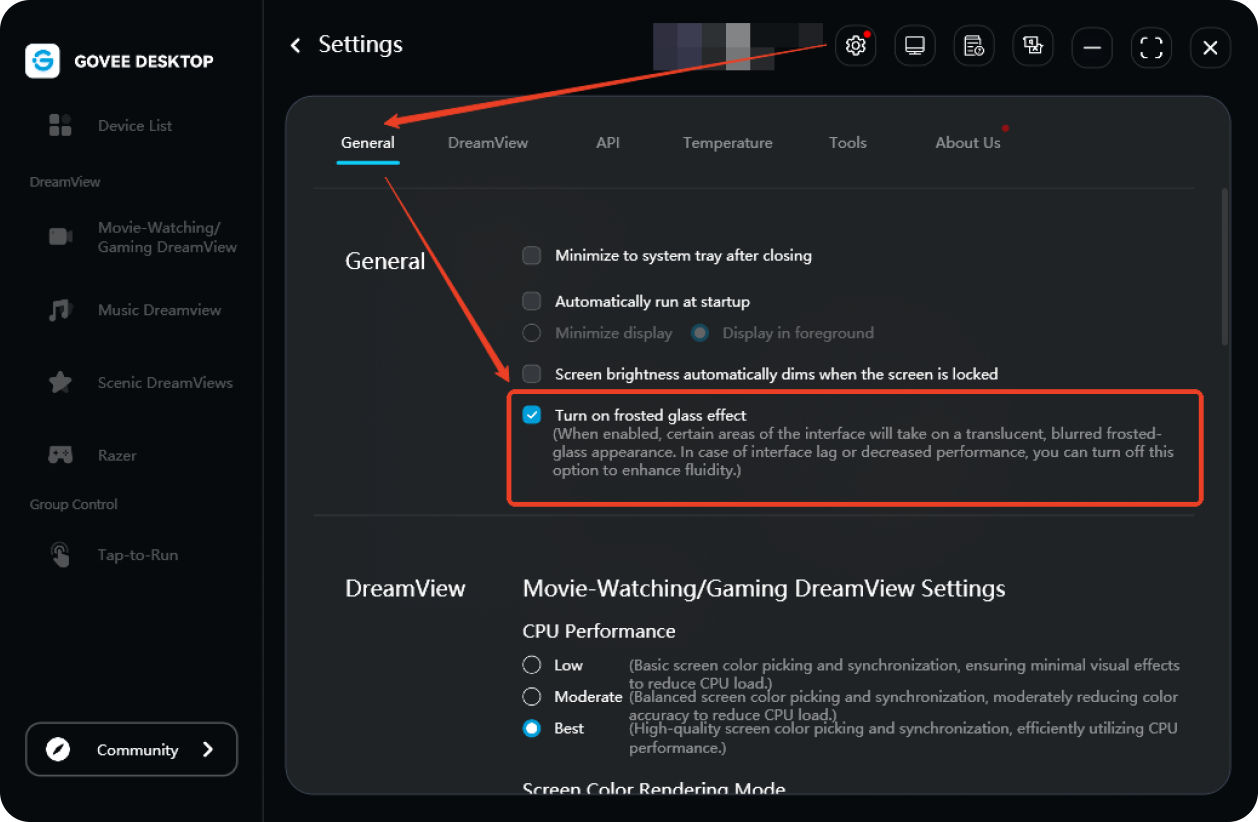
Starting from version 2.40.10, Govee Desktop's interface has been upgraded to the Glassmorphism style. On Windows 11 systems, this effect is enabled by default. If you notice the Glassmorphism is faint or not displaying properly, follow these steps below to check and enable it.
1. Open Settings: Click the Start button on the taskbar and select “Settings” or press the “Win+I” shortcut.
2. Access Personalization: In the Settings interface, click the “Personalization” option in the left-hand menu.
3. Adjust Window Transparency: On the “Personalization” page, select the “Colors” tab. Scroll down to locate the “Transparency effects” option and ensure its toggle switch is enabled.
4. Select Theme Color: On the “Colors” page, you can also choose a system theme color. The Glassmorphism will automatically adjust its transparency based on the selected color.
If the Glassmorphism style displays normally but you experience interface lag or reduced GPU performance, you can disable it in “Settings” > “General Settings.”